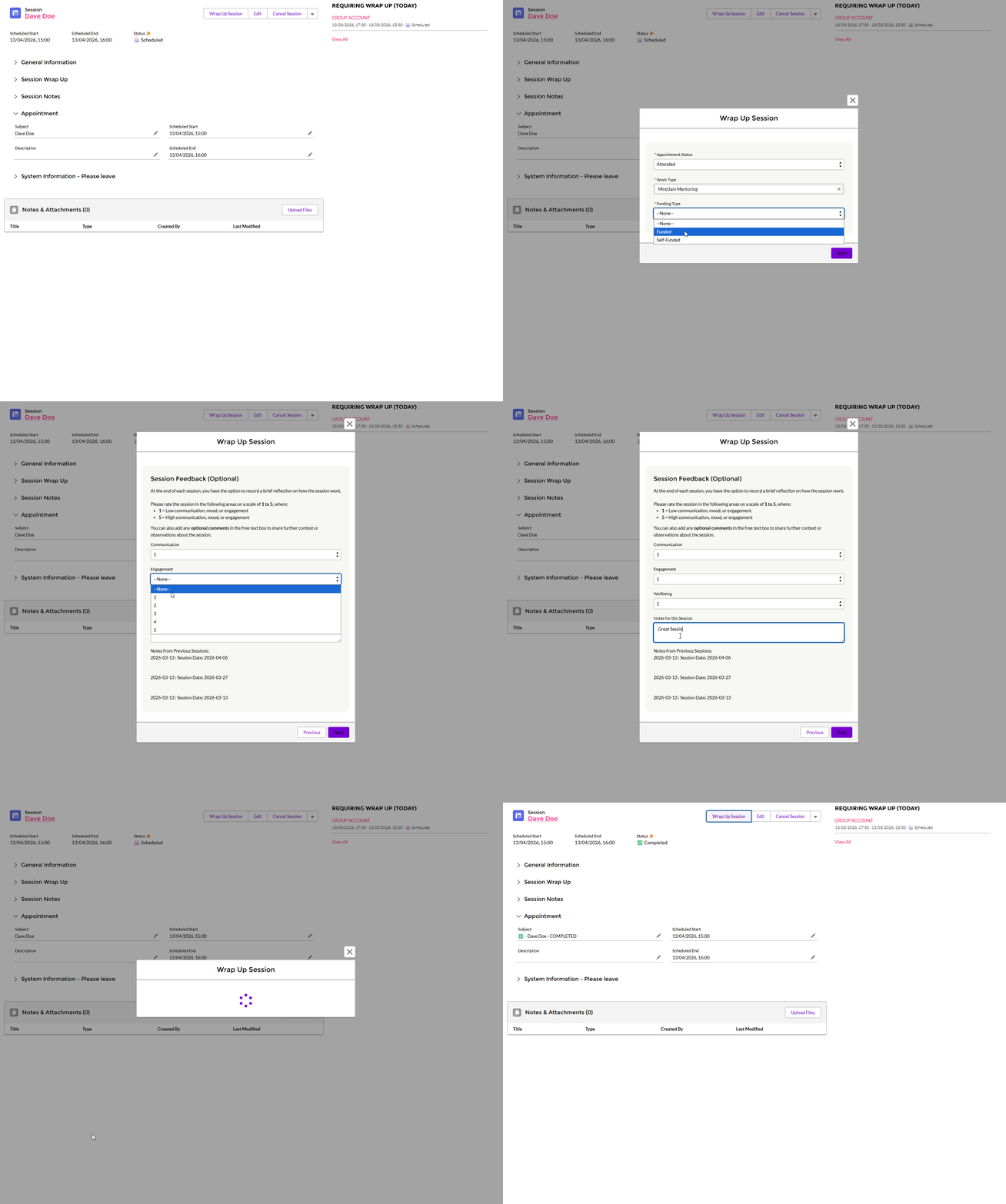
Wrap Up a Session
How to complete session notes, close out a mentoring session, cancel a session, or handle a late notice cancellation. Also covers attendance, invoicing, and payment.
Overview
Wrapping up a session confirms what happened and updates the session record for attendance, invoicing, and payment.
How to Wrap Up a Session
Open the Service Appointment. This can usually be found on clicking on a hyperlink that contains SA.
Click Wrap Up Session. This can be found in the top right corner within the Service Appointment.
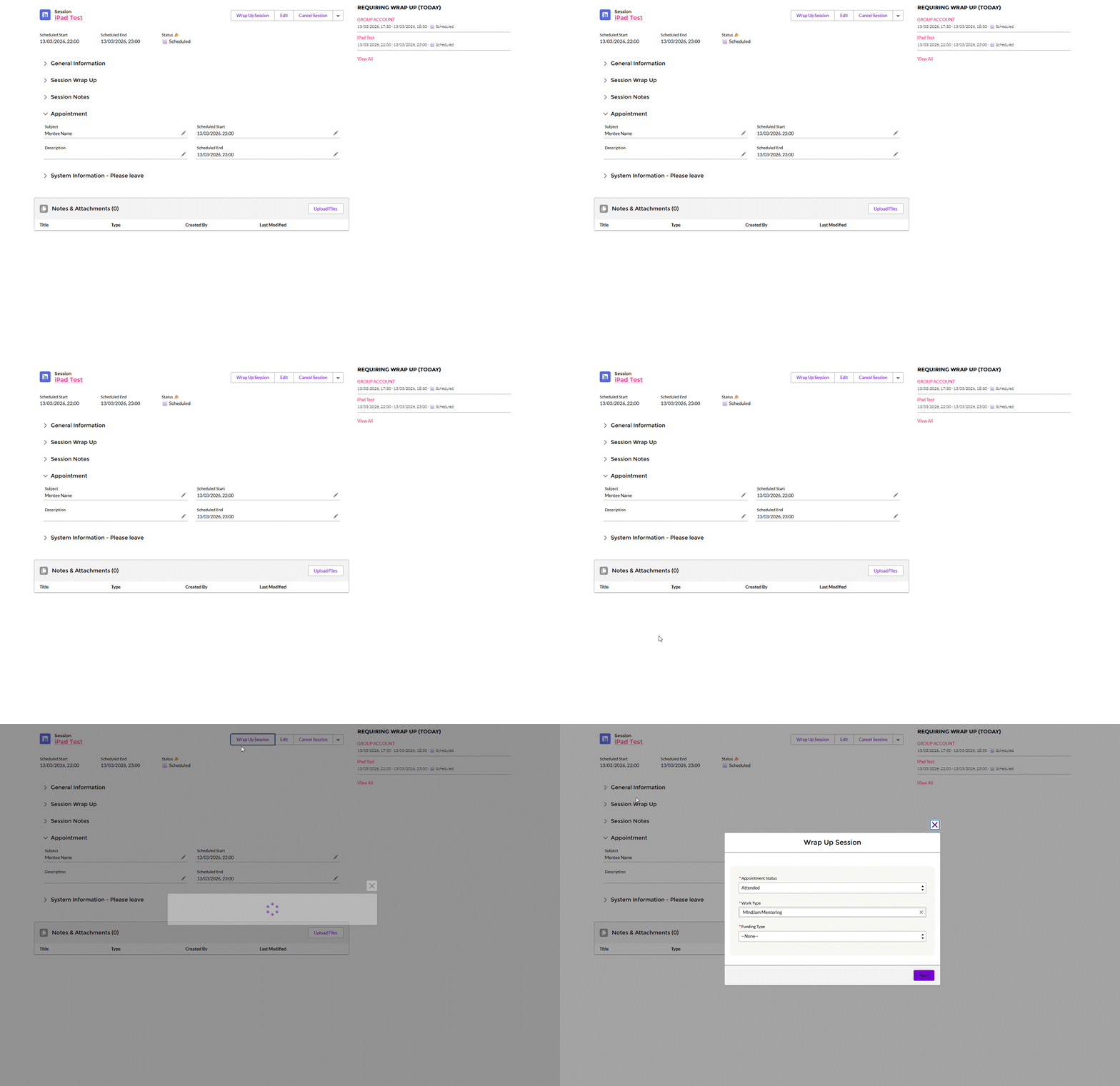
You can open a Service Appointment from different places in the system, such as the homepage, calendar, or dashboard. Look for a link that starts with SA.
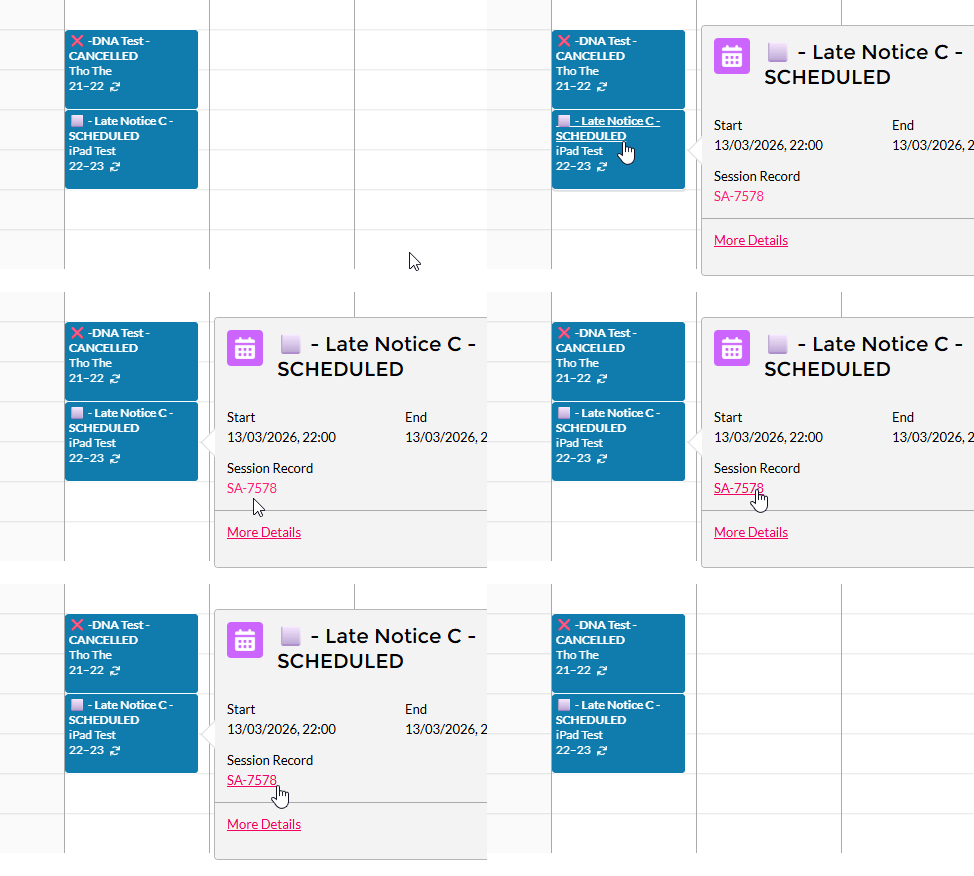
Funding Type
Next, choose whether the session is:
- Funded
- Self-funded
If you are not sure, you can check with Finance or Senior Leadership, or log a ticket with Finance.
In many cases, there will only be one option.
If there is more than one, choose the one that matches the arrangement for that mentee.
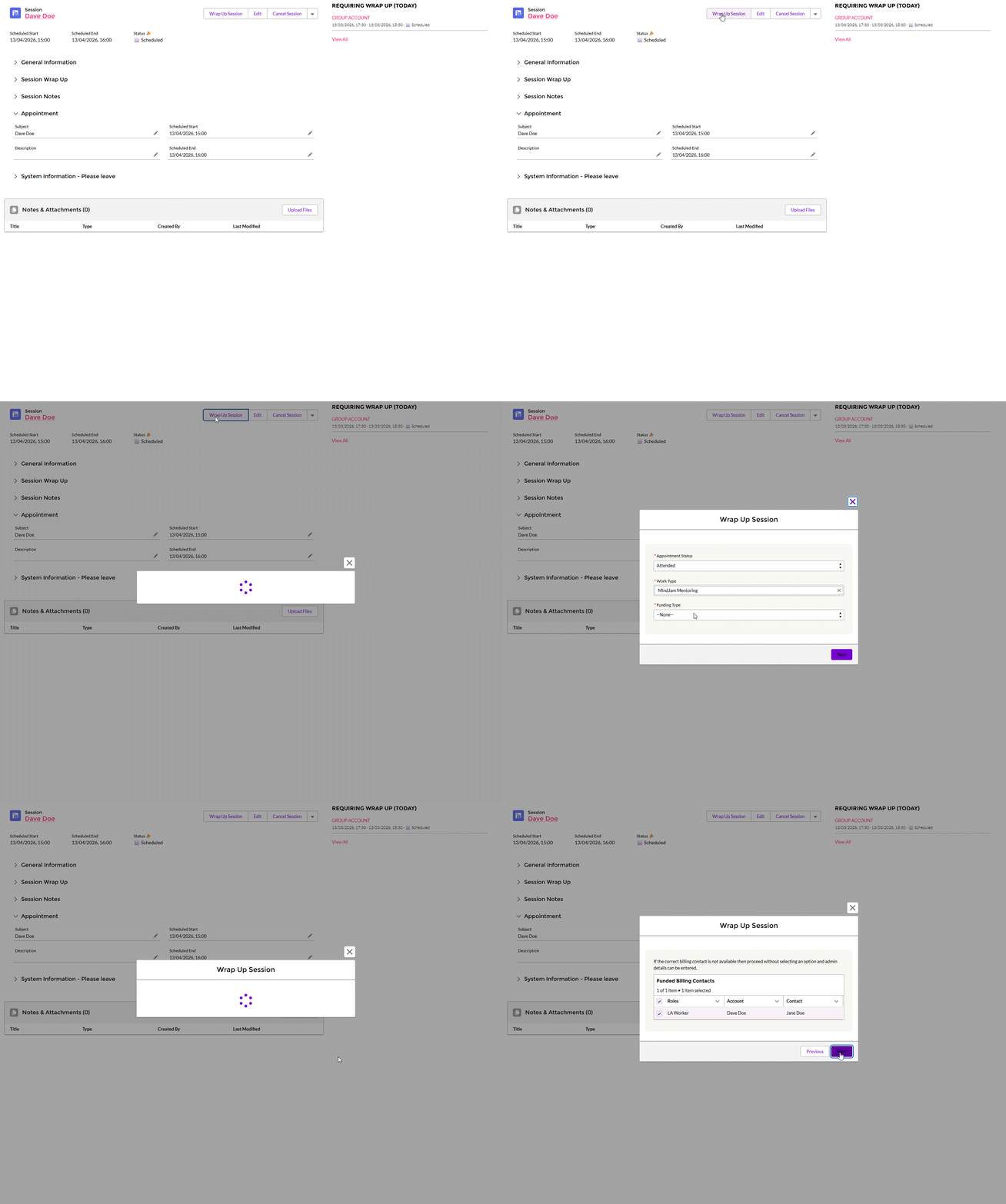
Why This Matters
Wrapping up a session is important because it helps the system:
- confirm what happened
- send automatic attendance emails
- support invoicing
- support payment processing
If a mentor does not wrap up a session, they will not be paid for that session.
Invoices will automatically be generated at the end of each month. Please make sure sessions are wrapped up before the final day of each month.
If you are unable to wrap up any sessions for any reason, please let a member of Senior Leadership know the status of each session you were unable to wrap up (Attended, Cancelled, and so on), and they will wrap your sessions up for you.
If You Need to Cancel a Session
If a session needs to be cancelled in advance, you do not need to wrap it up.
Instead:
- Open the Service Appointment
- Click Cancel Session
- Add the reason
- Follow the steps on screen
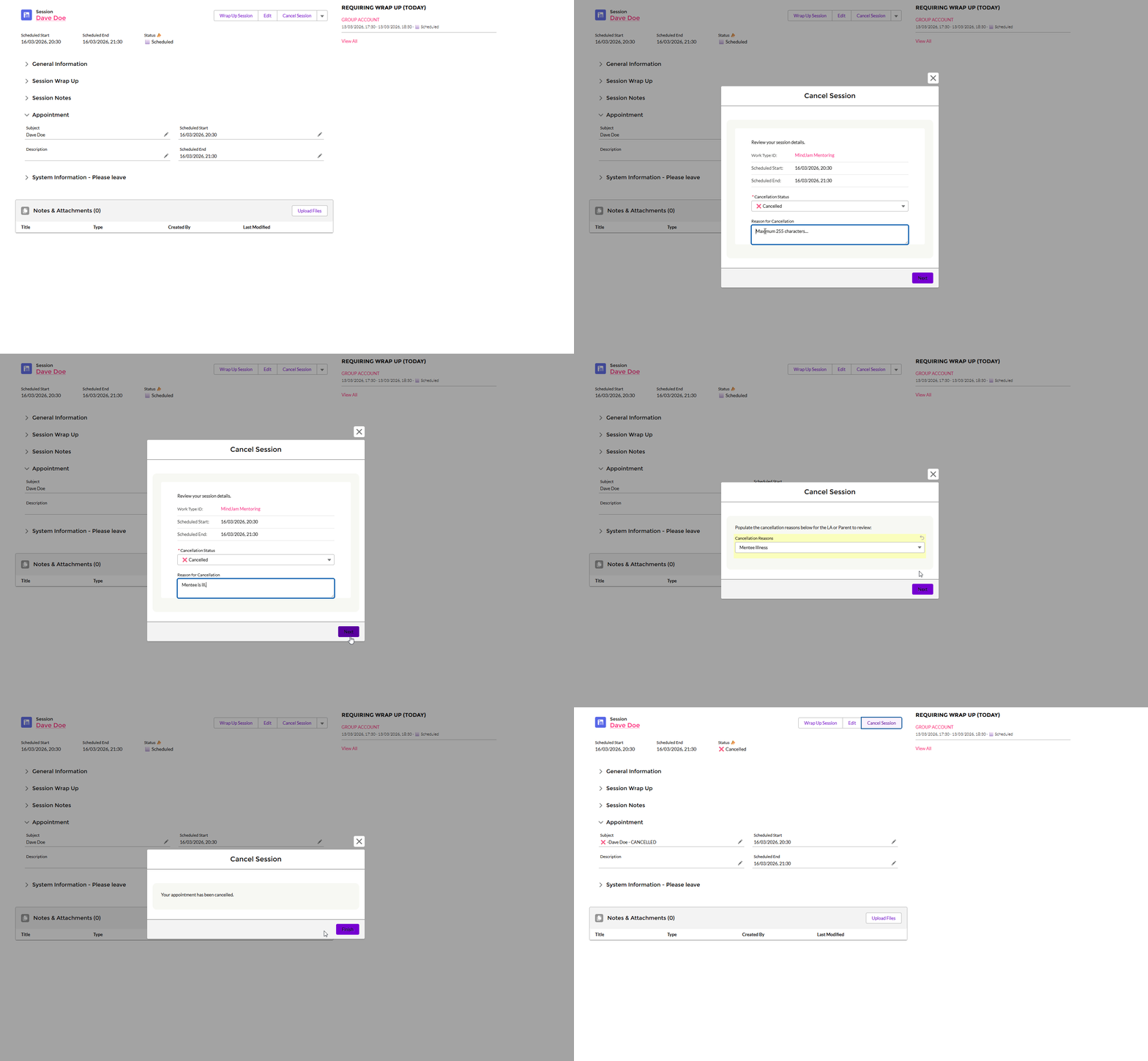
You will be asked for:
- an internal cancellation note. This will not be shared in any attendance emails.
- a cancellation reason from a dropdown. This will be shared in any attendance emails.
If Something Is Missing
Occasionally, the system may stop you from finishing the wrap up because some information is missing.
In that case:
- Click Next
- Skip past the wrap up page if needed
- Use the Admin Details box to explain the issue briefly
Finance will then find the missing information, add it to the mentee’s account, and wrap up that session for you.
After You Submit
Once everything has been completed, the Service Appointment will update and the session record will be complete.
This is what the system uses for attendance, invoicing, and payment.