Using Calendar Events
How to create, view, and manage calendar events and bookings for mentoring sessions. Includes session statuses such as attended, cancelled, late notice cancellation, and mentee no-show.
Overview
Before adding events, it is helpful to know that the Salesforce calendar works a little differently from Google Calendar.
Some parts may feel less familiar at first, but once you know where to click, it becomes much easier to use.
For example:
- to move an event, you edit the event details rather than dragging and dropping it
- event status is shown using a small coloured square in the title, rather than changing the colour of the full event
How to Add a Calendar Event
Each hour in the calendar is split into two sections:
- click the top half if the session starts on the hour
- click the bottom half if the session starts at half past

This will open a flow where you can enter the event details.
Event Details
Event Name
This can be anything you choose.
We recommend using the mentee’s full name so it is easy to find later.
Description
If you are using Google Meet, you can paste the meeting link here.
Type
You will see a list of event types.
Click a tile to flip it and see the details on the back.
Mentee Field
This field links the event to a specific mentee. When you click into the Mentee Field you will see a drop down of all your mentees. If your mentee does not appear click Enter on your keyboard. This will open a window with all your mentees.
If the event is for a mentoring session or other work connected to a young person, make sure you select the correct mentee here.
If no mentee is added, the system will not know who the event is for.
If you are creating a Personal Time event or another event not linked to a young person, such as Other Paid Work, you do not need to add a mentee.
Session Group
If this is a group session, use the Session Group field instead of selecting an individual mentee. Only do this if it is a group session event.
Start Time and End Time
Enter the time the event starts and ends.
Repeat and Other Fields
Repeat
If the session repeats, you can choose how often:
- weekly
- monthly
- yearly
If needed, you can also add an end date for the series.
For example, if a session will only run for a set number of weeks, you can set when it should stop.
Related To and System Information
You can ignore these fields.
Please do not change them.
Once everything is complete, click Save.
Important
When an event is created, the system also creates a Service Appointment in the background.
This can take up to 40 seconds.
If you do not see the Service Appointment straight away, it is usually best to wait a moment and check again.
After the Event Has Been Created
When you click on a calendar event, you will see some useful links and options.
Service Appointment
Use this when you need to:
- complete the wrap up
- confirm attendance
- update the session status
Edit or More Details
Use this when you need to:
- change the time
- change the date
- update other event details
- delete the event
If you need to move a session, open the event and edit the start or end date and time.
If the change only applies once, choose this event.
If the change applies to the full repeating series, choose the series.
Deleting an Event
To delete an event, open it and use the Delete Series option.
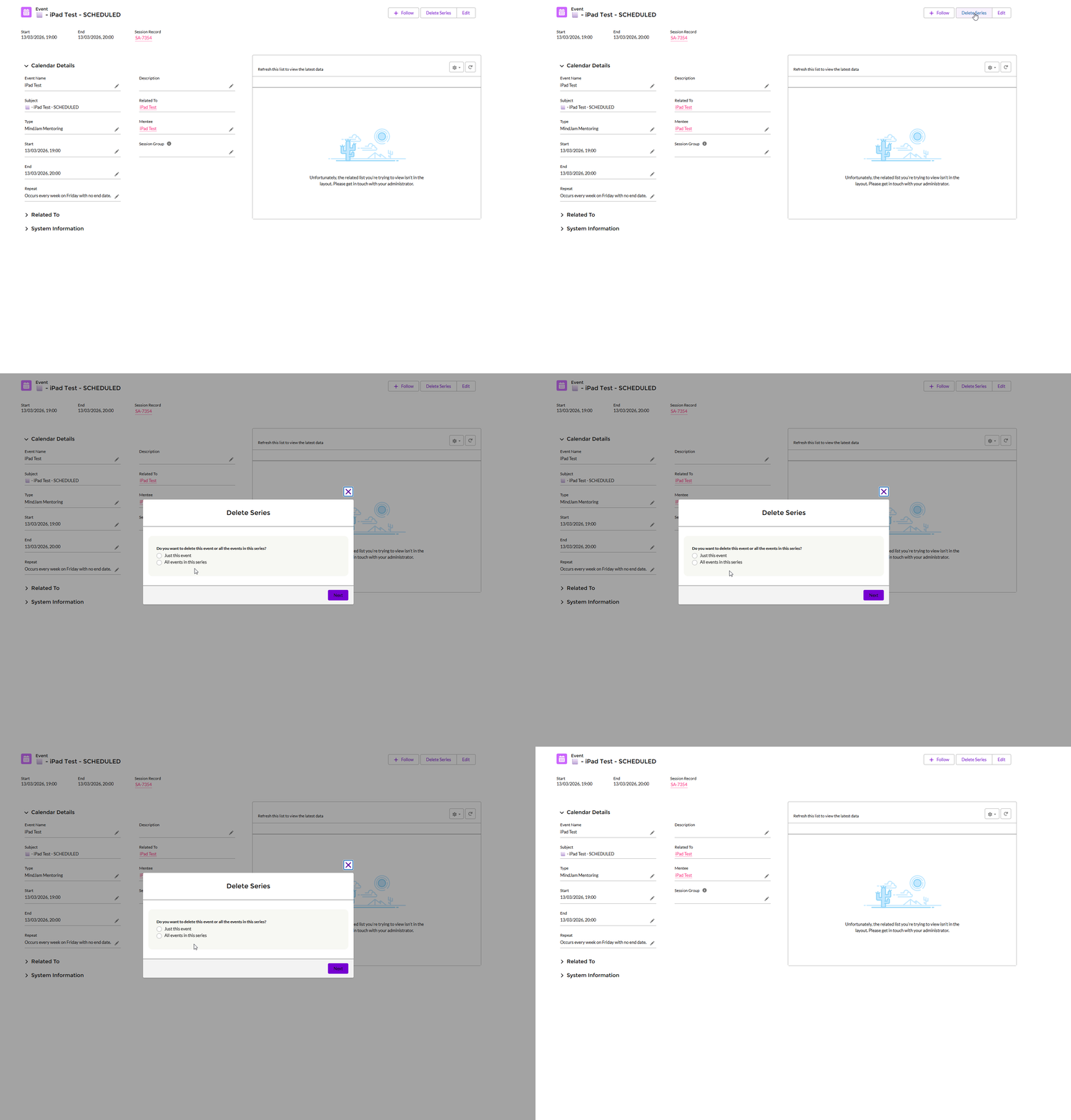
Despite the name, this does more than one thing.
You will then be asked whether you want to delete:
- just this event
- or this event and the following series
So even though the button says Delete Series, you can still choose to remove only one event.
Understanding the Coloured Square
Each calendar event includes a small square in the title. This will automatically update based on the wrap up, or if the session is called.
This shows the session’s current status.

Key:
A placeholder for a Parent/Carer meeting added by the assigning team.
A future session that is confirmed but has not yet taken place.
A successful session where the mentee attended and the wrap-up is finished.
A session cancelled within the official policy. No charge to the parent/carer.
A wrapped-up session that is missing funding contact details. The MindJam Finance Team will sort this for you.
A cancellation outside the official policy. The parent/carer will be charged.
The mentee did not show up for the session. The parent/carer will be charged.