Update Your Games, Equipment and Preferences
How to update your profile with the games, equipment, and preferences you use for mentoring.
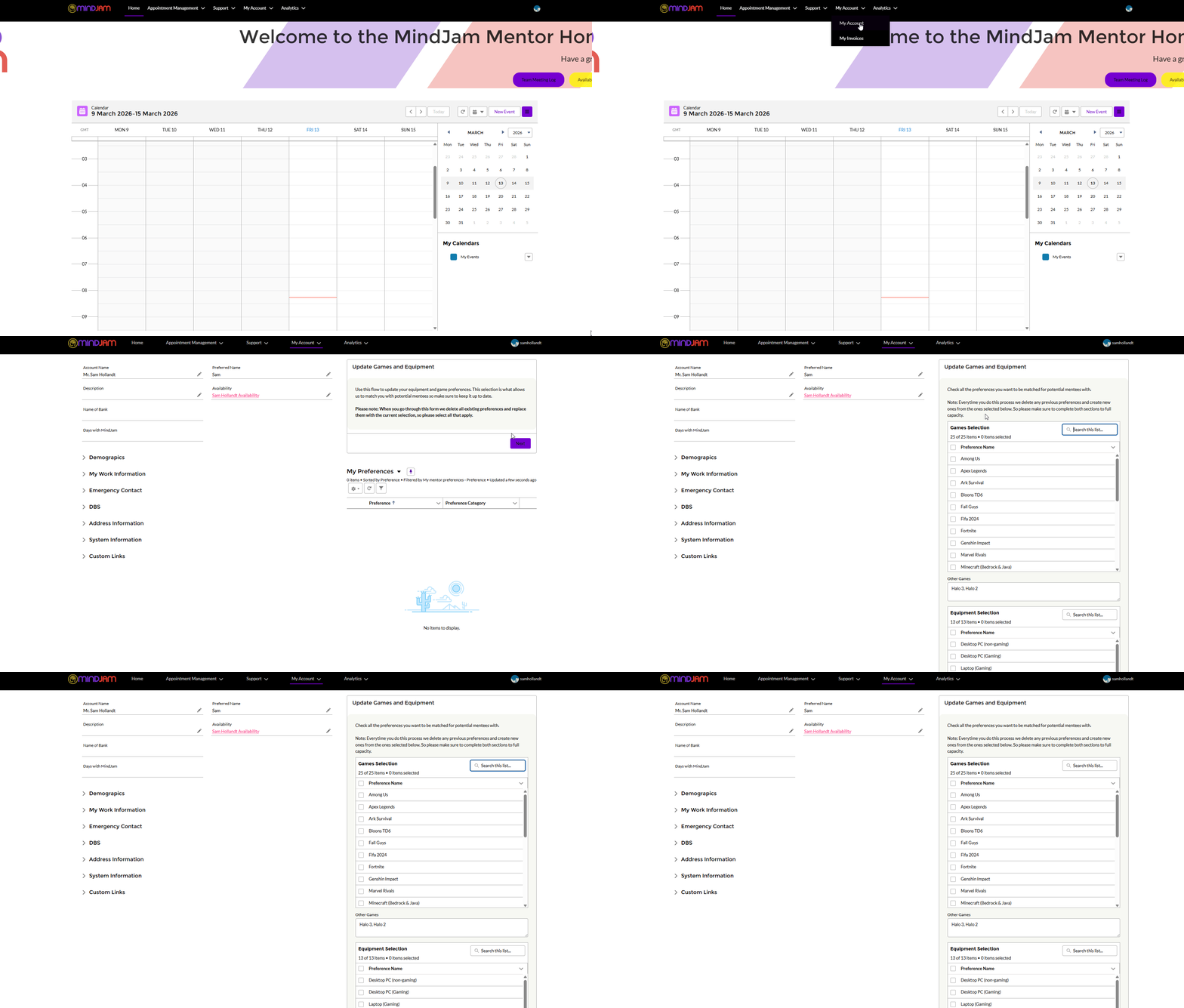
How to Open Update Preferences
There are two ways to access this section.
Option 1
- Go to My Account
- Click My Account again
- In the top right, click Update Games and Equipment Flow
Option 2
- Go to the Home Page
- Scroll to the bottom
- Click Update Preferences
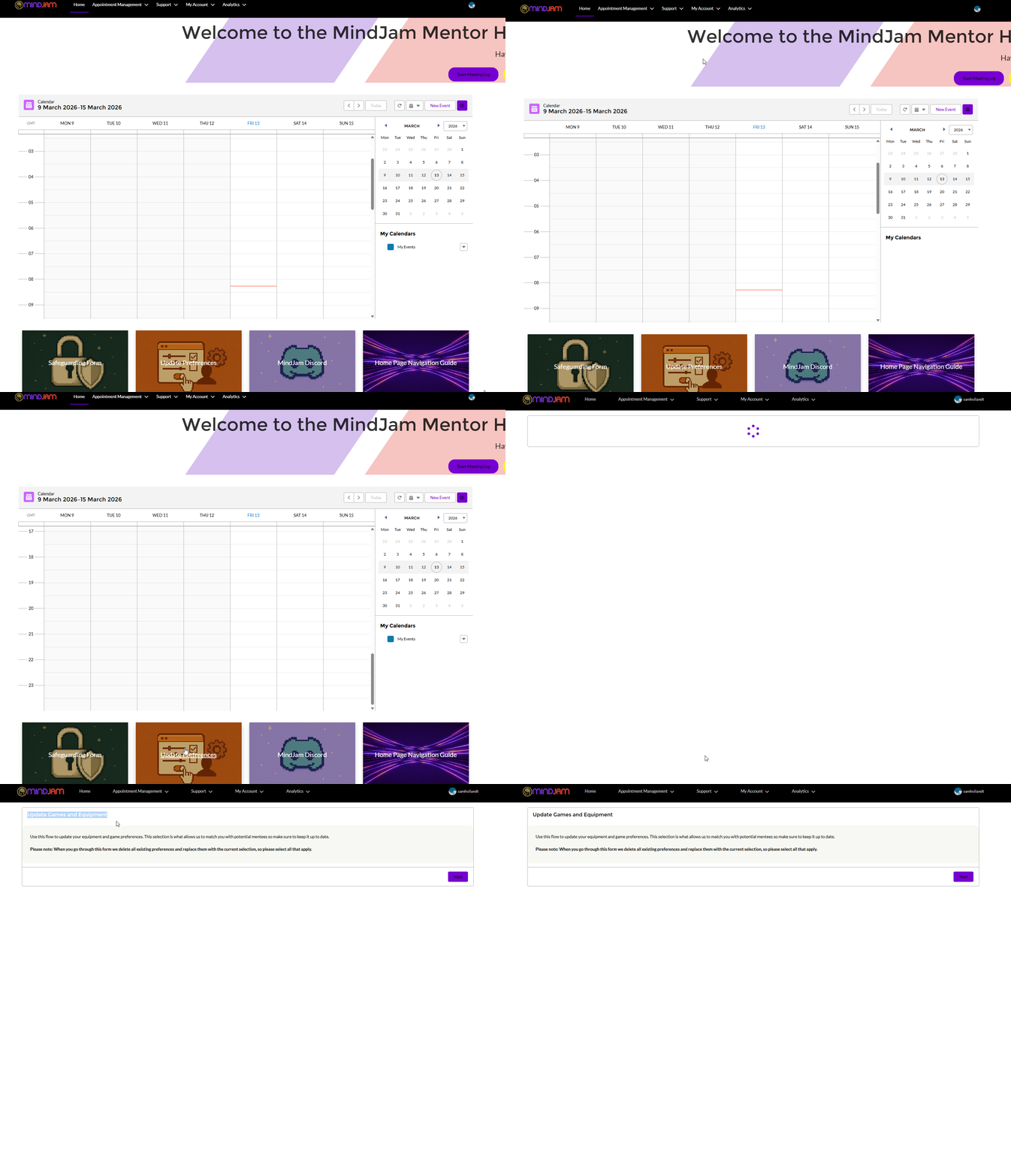
This will open the Update Games and Equipment flow.
What a Flow Means
A flow in Salesforce is a step-by-step form that guides you through a process.
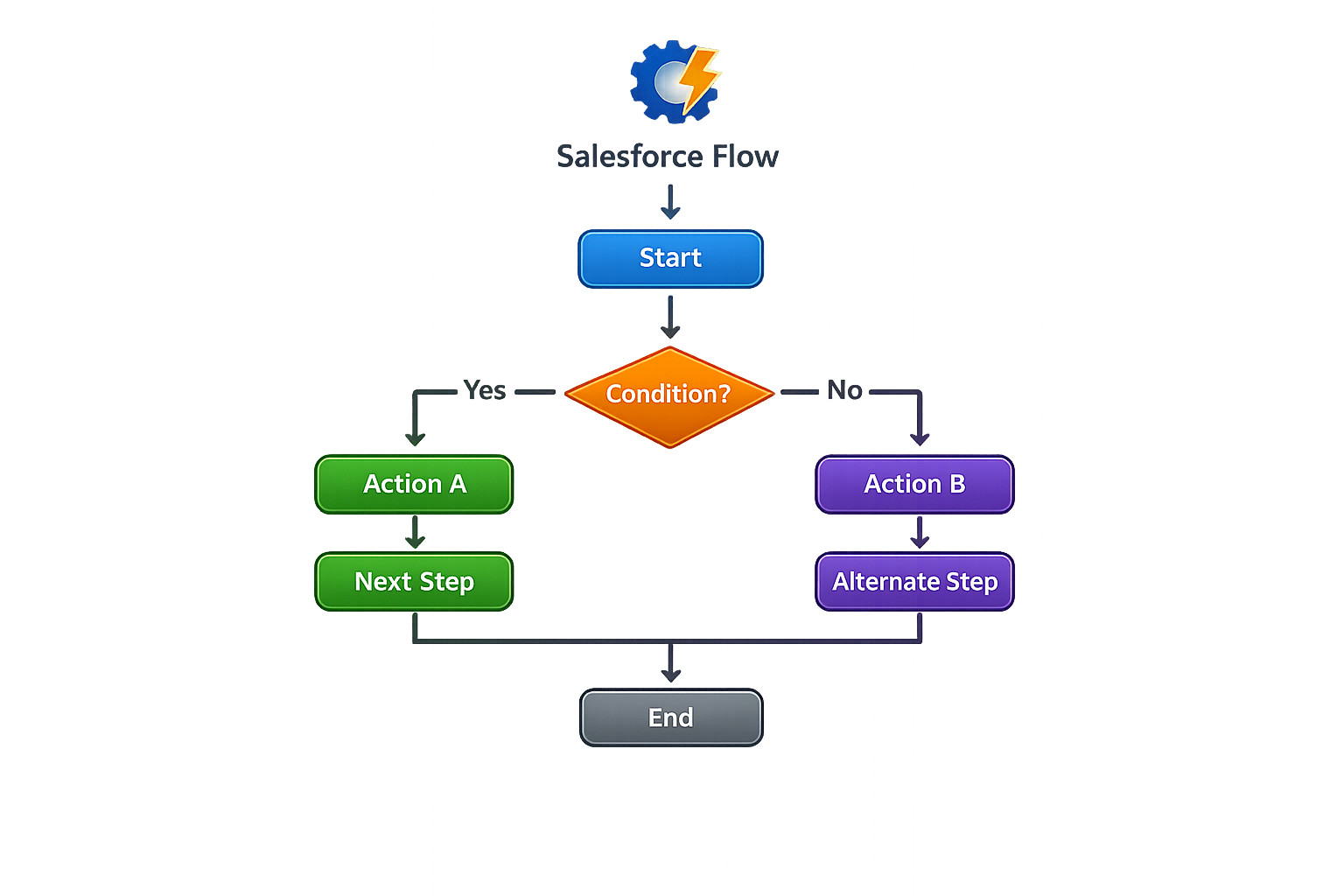
In this case, it simply asks you to enter information about your:
- games
- equipment
- interests
- skills
- preferences
Click Next to begin.
Step 1: Add Your Games
You will first see a list of games.
Tick the games you currently have access to.
Some of the game options may be a little out of date. These are being reviewed and updated over time.
If you have access to any of MindJam’s most commonly used games, please make sure you tick them where relevant, including:
- Roblox
- Fortnite
- Minecraft Java
- Minecraft Bedrock
If a game you use is not listed, use the Other Games free text box to add it.
Step 2: Add Your Equipment
Next, tick the equipment that is relevant to you.
If something you use is not listed, use the Other Equipment free text box to add it.
Equipment options will be updated over time.
Step 3: Add Other Information
You will then be asked for some additional information. This is to help assigning find better and more suitable mentee matches for you.
Gender Identity
You can complete this if you want to. There is also a Prefer not to say option.
Interests
Add any interests you would like to include.
Other Games
There is another box where you can add extra games if you forgot any earlier.
Step 4: Add Your Skills
You will also see a section called Mentor Skills.
This uses a dual list box.
To complete this:
- Click the skills that apply to you
- Click the arrow to move them into the chosen section
Only move across the skills that are relevant to you.
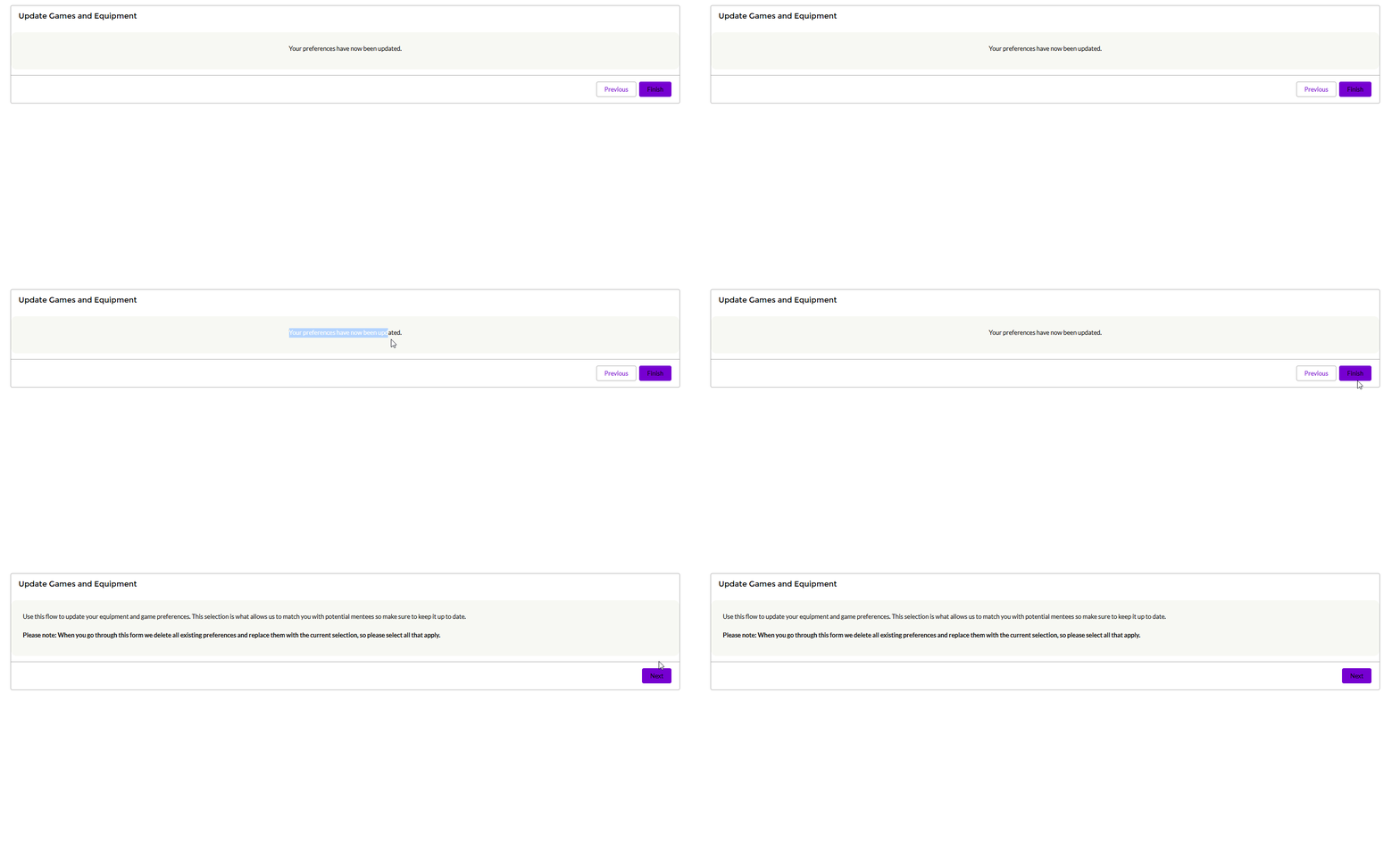
Finish the Form
When you have completed everything, you will see a message confirming that your preferences have been updated.
Click Finish.
Keeping It Up to Date
You can update your preferences at any time.
We recommend updating them if:
- you start using a new console
- you get access to a new game
- your equipment changes
- your skills change
If there is a game or piece of equipment that should be added to the list, please let senior leadership know so it can be reviewed.