Availability
How to set and update your availability and time slots so mentoring sessions can be booked with you.
Overview
Once you have updated your games, equipment and preferences, the next step is to set your availability.
In Salesforce, your availability is set up using operating hours.
Set Your Availability (Operating Hours)
Before setting up your availability, it helps to know why it matters.
Your availability tells the system and the assigning team when you want to work.
This helps them see which time slots are free when matching mentees.
If you do not want to work on a particular day or at a particular time, simply do not add that time slot.
Any time in your availability that is not already blocked by a session can appear as available for matching.
Example
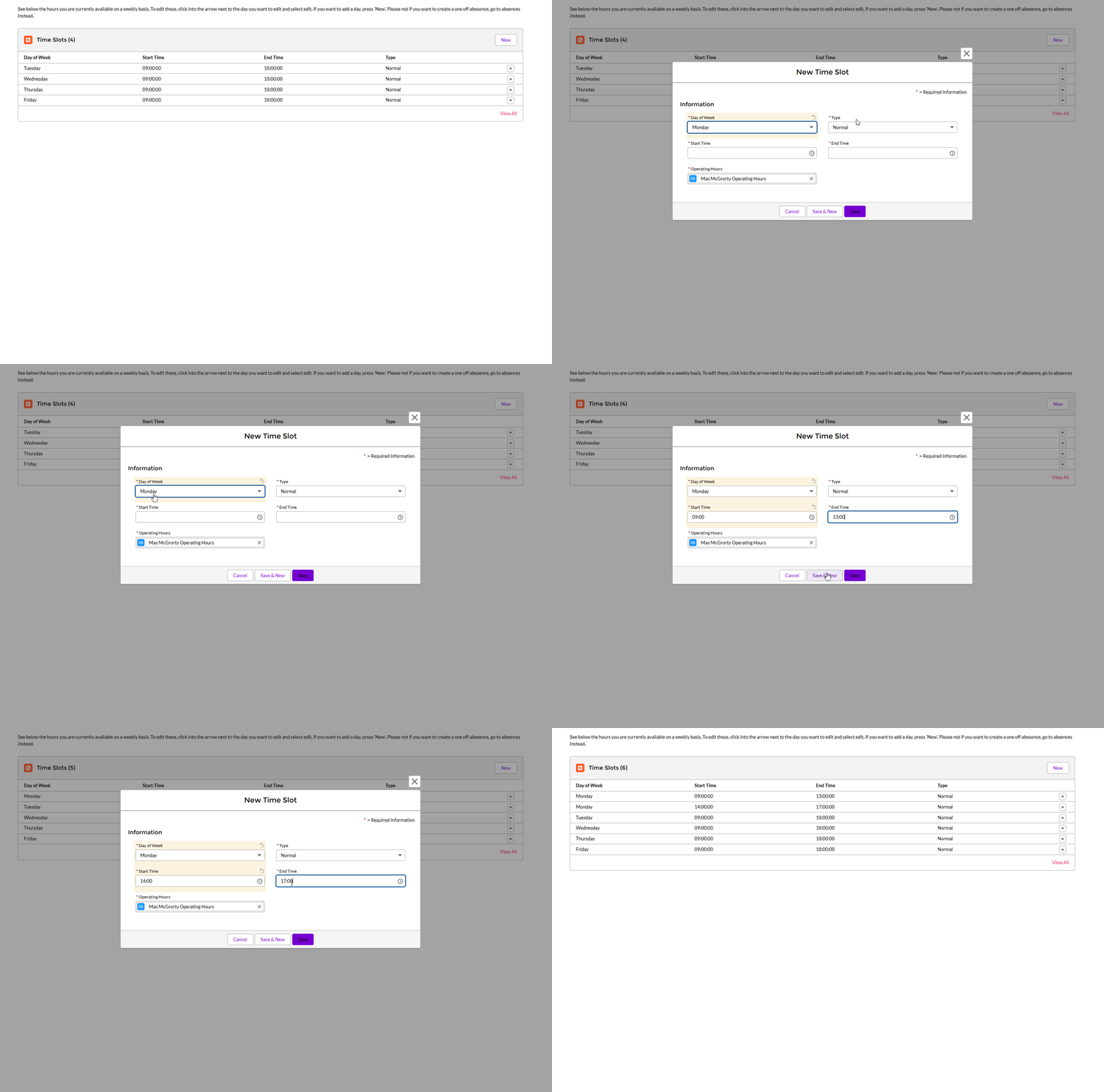
If you usually work on Monday from 9:00 to 5:00, but take a break from 1:00 to 2:00, you would enter:
- 9:00 to 1:00
- 2:00 to 5:00
This ensures 1:00 to 2:00 does not appear as available.
How to Add Availability
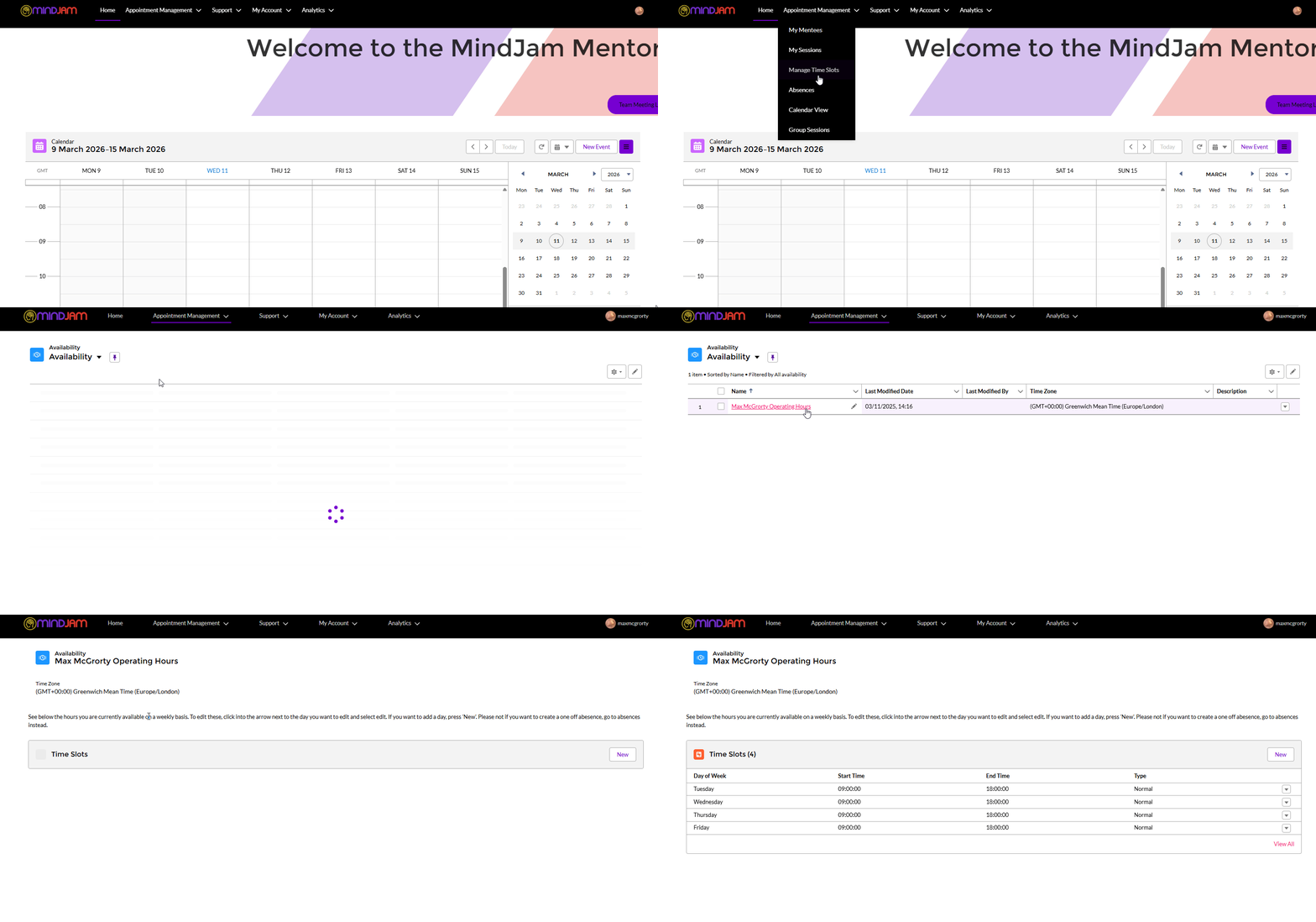
- Log in to the Community Site
- Go to Appointment Management
- Open Manage Time Slots
- Click the link with your name
- Click New
A new window will open. From here:
- Choose the day of the week
- Leave Type as Normal
- Enter the start time
- Enter the end time
- Click Save or Save & New
If you are adding more than one time slot, Save & New is usually the easiest option.
Using the Example Above
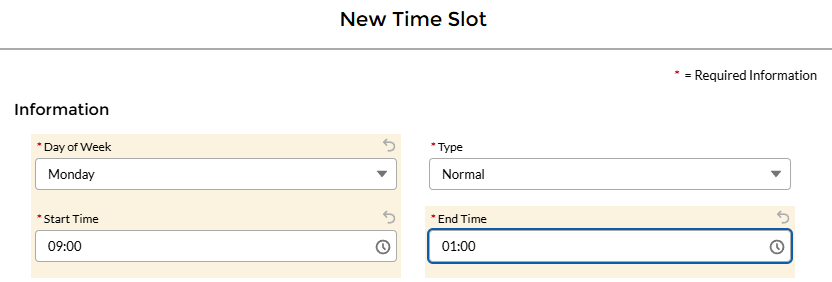
To add Monday 9:00 to 1:00:
- Day of the Week: Monday
- Type: Normal
- Start Time: 9:00
- End Time: 1:00
Then click Save & New.
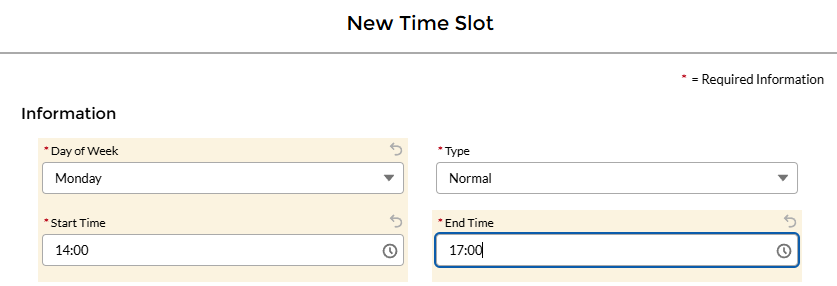
To add Monday 2:00 to 5:00:
- Day of the Week: Monday
- Type: Normal
- Start Time: 2:00
- End Time: 5:00
Then click Save.
Repeat this for any other days and times you want to add.
Updating Availability Later
If your availability changes, you can go back into Manage Time Slots and add new time slots at any time.
To edit, delete, or clone a time slot:
- Find the day and time you want to change
- Click the small (▼) arrow icon next to it
- Choose Edit, Delete, or Clone
Optional Alternative Method
There is another way to do this, but it is a little more clunky.
Instead of entering separate working slots, you can:
- Add your full working day in Manage Time Slots
- Go to your calendar
- Add a new event for the time you do not want to work
- Set the event type to Personal Time
- Set it to repeat weekly if needed
For example, if you work 9:00 to 5:00 but want 1:00 to 2:00 blocked out, you could:
- add availability for 9:00 to 5:00
- then add a Personal Time event from 1:00 to 2:00
This works because the blocked time will not appear as available.
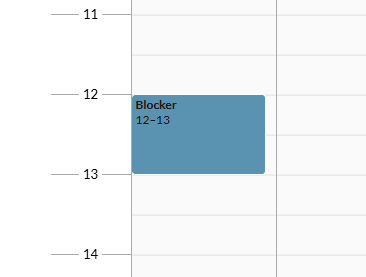
You do not need to call the event Lunch. You can call it something simple like Blocker.
Important
If you use the calendar blocker method and forget to add the blocker, the system may treat that time as available.
This could mean you appear free for times you did not want to offer.
For most people, the clearest option is to enter availability as separate time slots.