Accessing Your Sessions
How to find, view, and manage your mentoring sessions, appointments, and bookings on the Community Site.
Overview
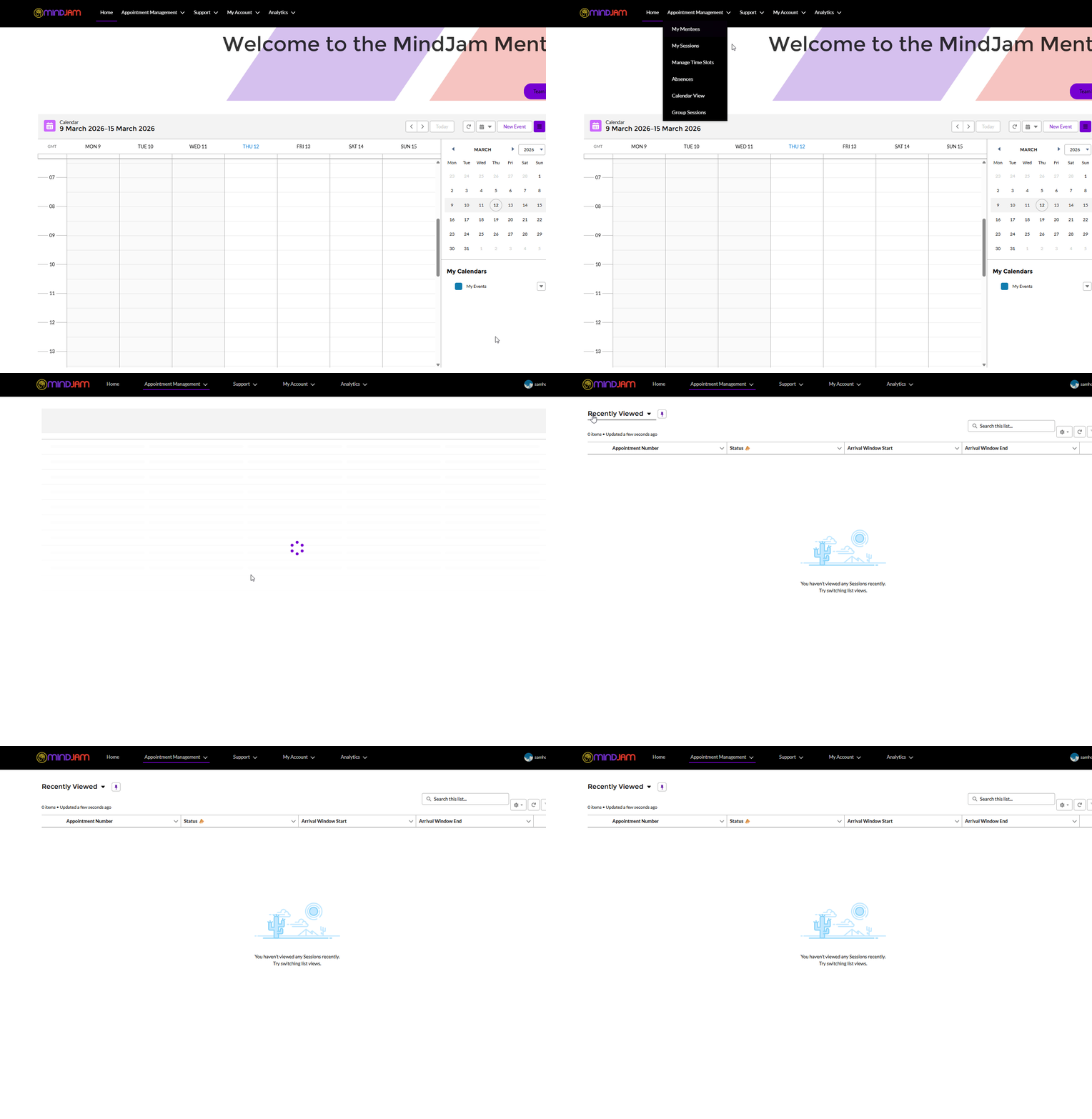
To access your sessions, go to Appointment Management and then click Sessions.
Session List Views
At first, this page may open in the Recently Viewed list.
To see other session views, click the dropdown arrow next to Recently Viewed.
This lets you switch between different filtered views of your sessions.
Why List Views Are Useful
List views make it much easier to find the sessions you need without searching through everything.
For example, instead of looking through every session in the system, you can choose a view that only shows:
- today’s sessions
- sessions that still need wrapping up
- new mentees that need confirmation
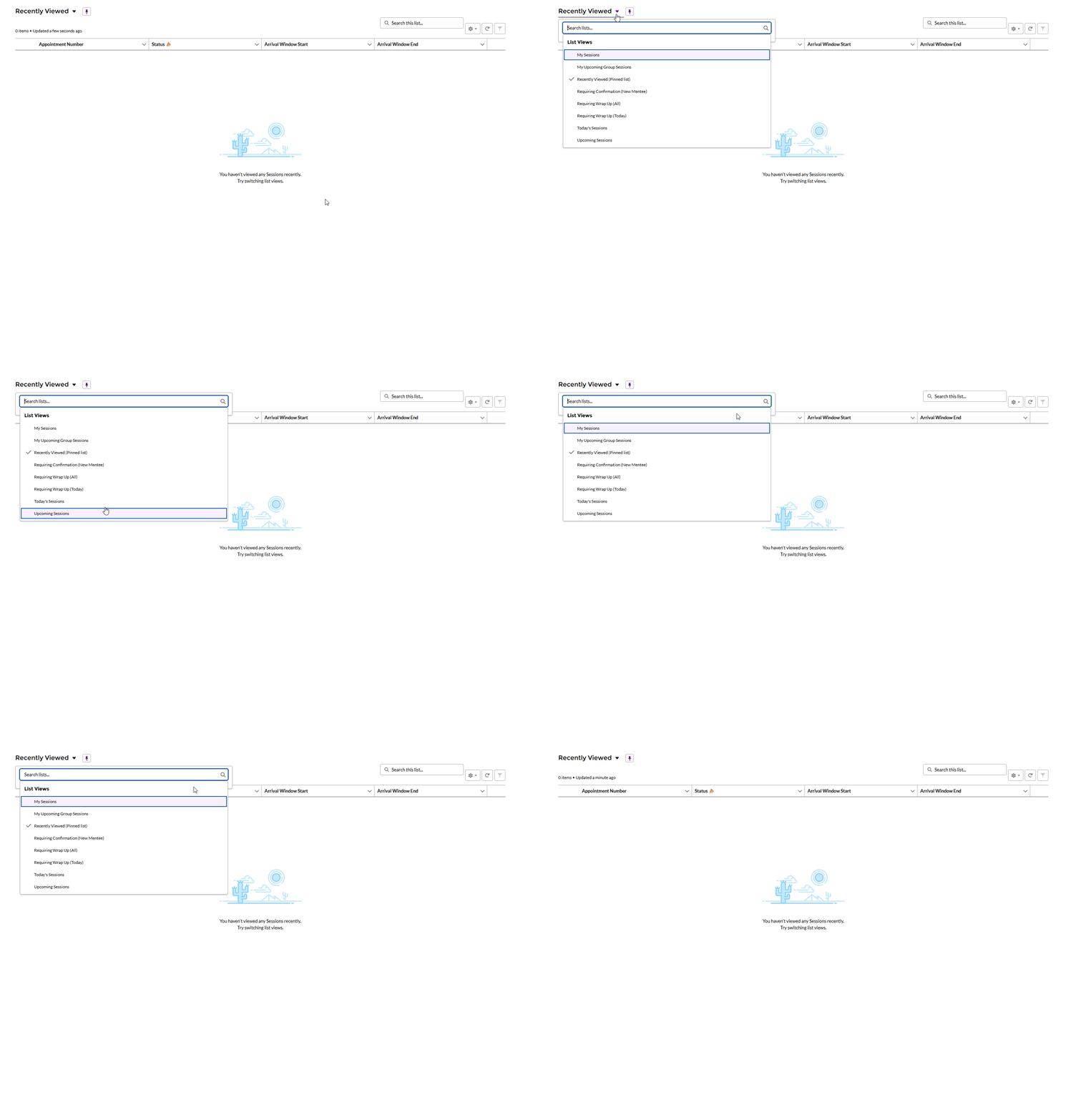
Useful List Views
Requiring Confirmation New Mentee
This is a useful way to keep track of new mentees.
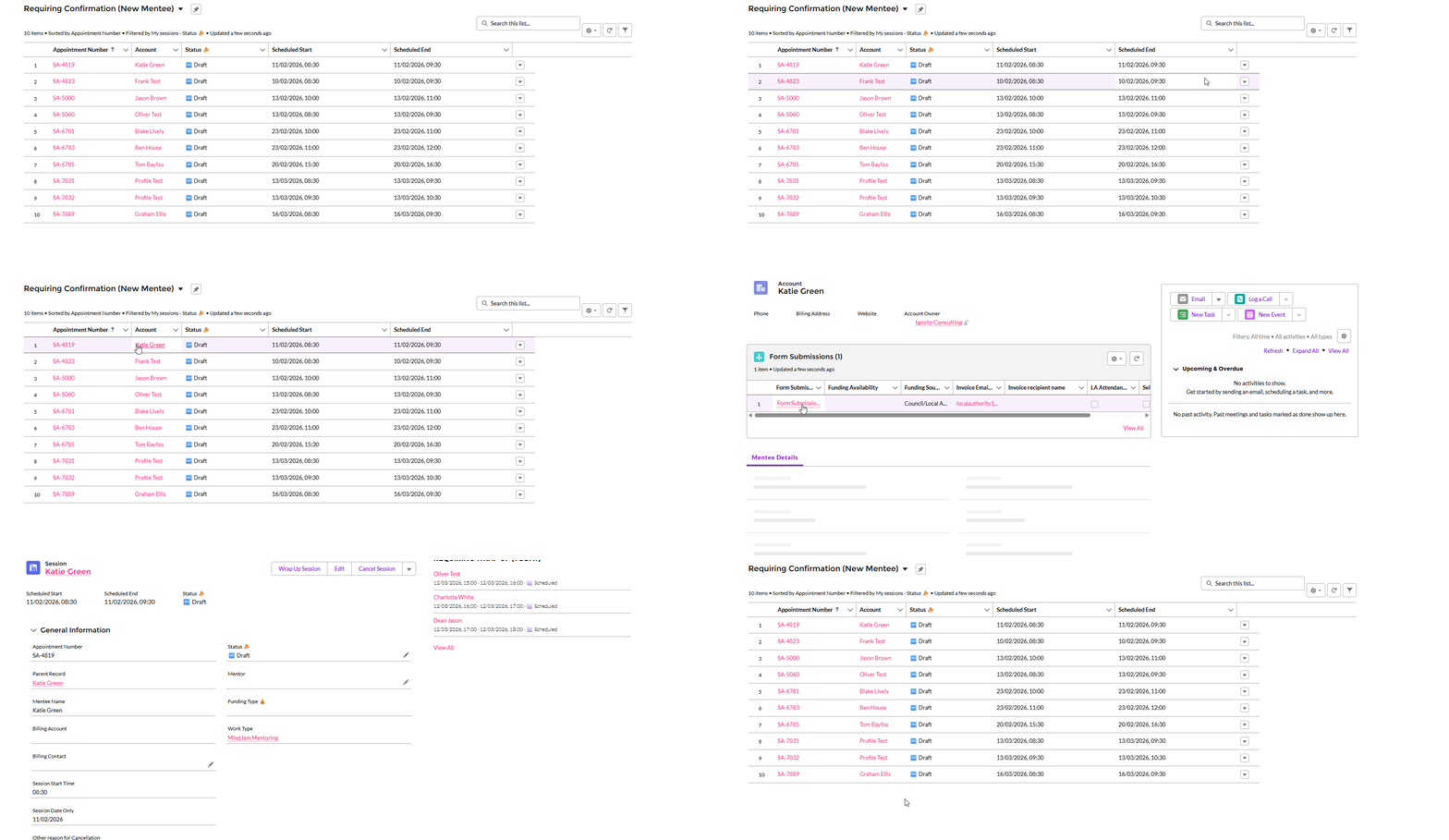
It shows young people who may still need to be accepted or rejected.
More Useful List Views
Requiring Wrap Up Today
This shows all the sessions you have today that have not been wrapped up yet.
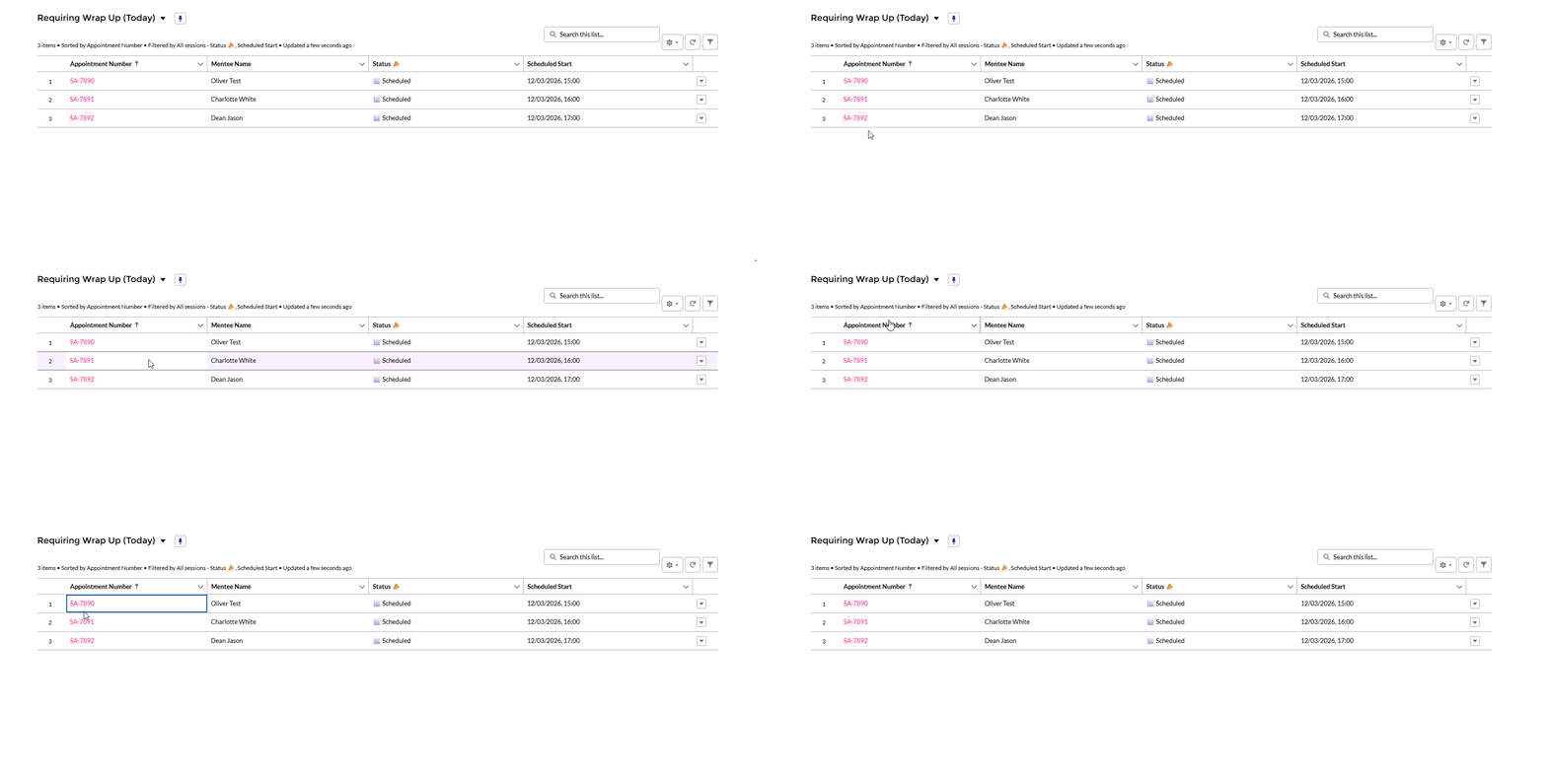
This can be especially helpful at the end of the day when checking what still needs to be completed.
Other Views
There may also be other helpful views depending on what has been set up in Salesforce.
Some of these list views may be changed over time, depending on what is most useful.
Opening a Session
From any list view, click on the hyperlink that starts with "SA" to open it.
From there, you can:
- check the session details
- wrap up the session if needed
Key Point
Session list views are one of the quickest ways to keep track of what needs attention.
Use them to find upcoming sessions, sessions needing wrap up, and mentees needing confirmation.